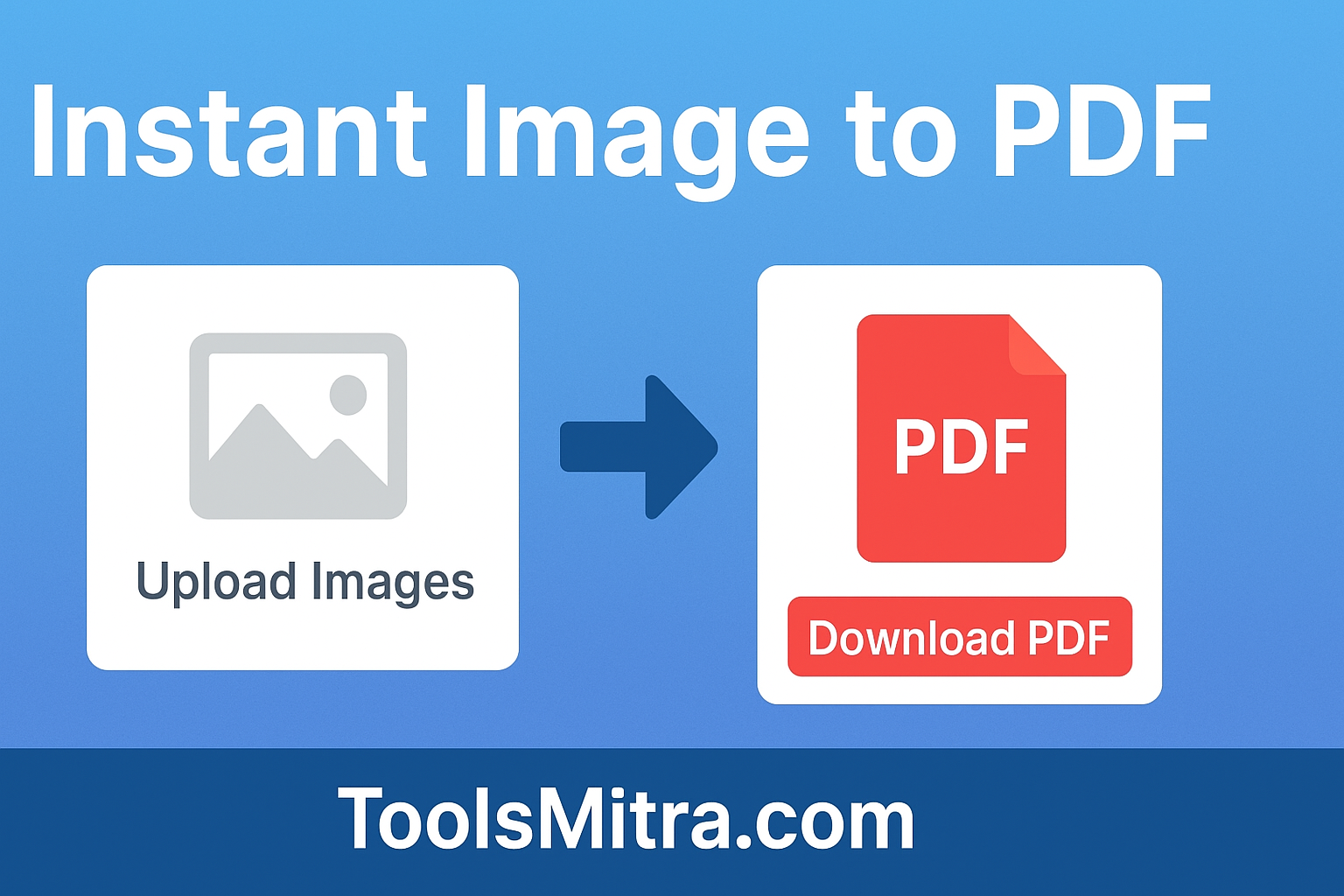

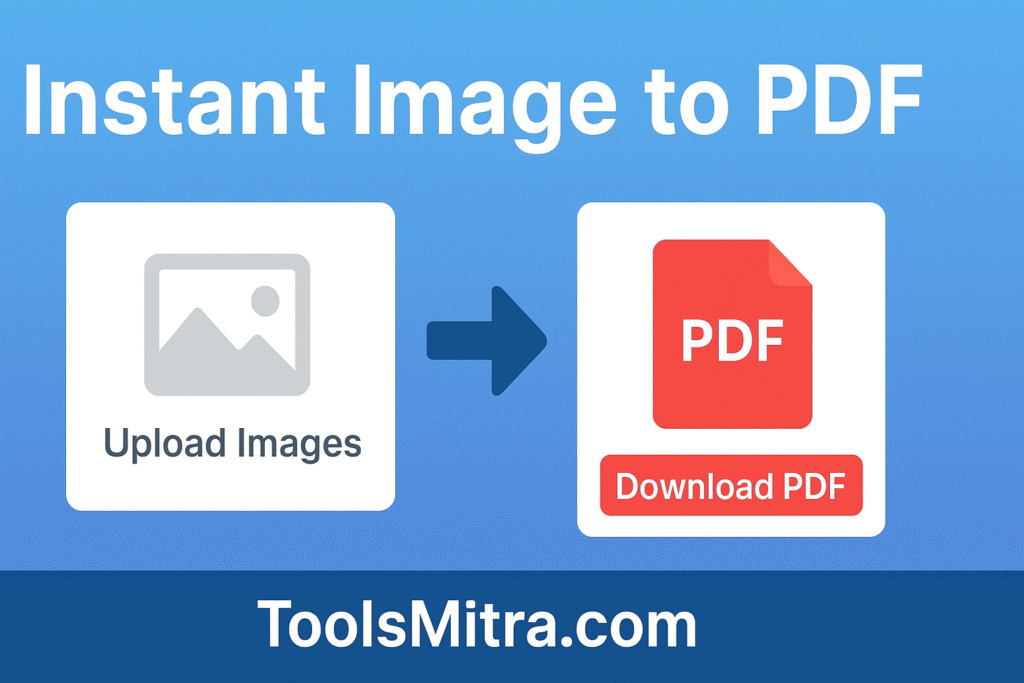
Converting images to PDF is one of the most common tasks for students, professionals, and businesses. Whether you have JPG, PNG, or WebP files, merging them into a single PDF or creating individual PDFs is essential for sharing, printing, or archiving documents. With ToolsMitra’s Image to PDF Converter, you can do this directly in your browser — quickly, securely, and for free.
Why Convert Images to PDF?
PDFs are widely recognized as the standard format for documents because they preserve formatting across all devices and platforms. Unlike images, PDFs can:
Combine multiple pages into a single file.
Maintain consistent quality regardless of the device or software used to view them.
Be easily printed, emailed, or uploaded to websites.
For example, scanning receipts or invoices often results in multiple image files. Converting them into a PDF keeps all pages together and makes them easier to manage.
Key Features of ToolsMitra Image to PDF Converter
Our tool is designed to be user-friendly and feature-rich. Some of the highlights include:
1. Merge Multiple Image
combine several images into a single PDF file. Perfect for reports, portfolios, or presentations.
2. Custom Page Sizes
Choose from Fit to Image, A4, or Letter sizes. Both Portrait and Landscape modes are supported.
3. Image Rotation
Rotate images 90°, 180°, or 270° to ensure proper orientation in the PDF.
4. Reorder Images
Drag and drop images to rearrange the sequence before converting.
5. Compression Options
Reduce PDF file size without compromising on quality. Options include High, Medium, and Low compression levels.
6. Privacy-Focused
All processing happens locally in your browser — your images never leave your device.
7. Mobile-Friendly
Fully responsive and works on smartphones, tablets, and desktops.
Step-by-Step Tutorial: How to Convert Images to PDF
Here’s how you can convert your images to PDF in just a few steps:
1. Upload Images
Click Select Images or drag and drop your files into the upload box. The tool supports multiple images at once.
2. Preview and Edit
Preview your images in the gallery. You can rotate images or drag them to reorder them according to how you want them to appear in the PDF.
3. Choose Page Size
Select your preferred page size: Fit to Image, A4, or Letter. Choose Portrait or Landscape orientation.
4. Select Compression Level
Decide whether you want Original, High, Medium, or Low compression. High compression reduces file size without major quality loss, while Medium and Low help make smaller PDFs for easy sharing.
5. Choose Output Mode
Decide if you want all images merged into a single PDF or if each image should become a separate PDF.
6. Convert and Download
Click Convert to PDF. Your file(s) will be ready instantly for download — no waiting, no uploads.
Benefits of Using ToolsMitra Image to PDF Converter
Fast and Efficient: Instant PDF creation without any software installation.
100% Private: All images are processed locally, ensuring complete privacy.
Free to Use: No hidden charges or subscriptions.
Cross-Platform: Works on Windows, macOS, Linux, Android, and iOS.
User-Friendly: Intuitive interface designed for everyone, from beginners to professionals.
FAQs
Q: Are my images uploaded anywhere?
A: No. Everything happens locally in your browser; your images stay private.
Q: Can I merge hundreds of images at once?
A: Yes, the tool supports multiple images. Large batches are also handled efficiently.
Q: Can I rotate or reorder images before converting?
A: Absolutely. Drag-and-drop functionality allows you to reorder, and rotation buttons let you adjust orientation.
Q: What page sizes are supported?
A: Fit to Image, A4 (Portrait & Landscape), and Letter (Portrait & Landscape).
Q: Does it work on mobile devices?
A: Yes, the tool is fully responsive and works perfectly on smartphones and tablets.
Q: How can I reduce the PDF file size?
A: Use the compression options (High, Medium, Low) before converting. This helps reduce file size while maintaining quality.
Why ToolsMitra Stands Out
Unlike other online converters, ToolsMitra is privacy-focused, fast, and reliable. No server uploads, no waiting for downloads, and no hidden fees. Everything happens in your browser. We are proudly developed in India 🇮🇳 to provide free and secure online tools for everyone.
Tips for Best Results
Use high-quality images to avoid blurry PDFs.
Rotate images to the correct orientation before conversion.
Choose the right page size to prevent cropping.
Use compression wisely — High for better quality, Low for smaller file sizes.
Start Converting Images to PDF Today
Ready to convert your images into PDFs instantly? Visit ToolsMitra Image to PDF Converter, upload your images, and download high-quality PDFs within seconds. No software, no registration, and complete privacy — just fast, reliable conversion.