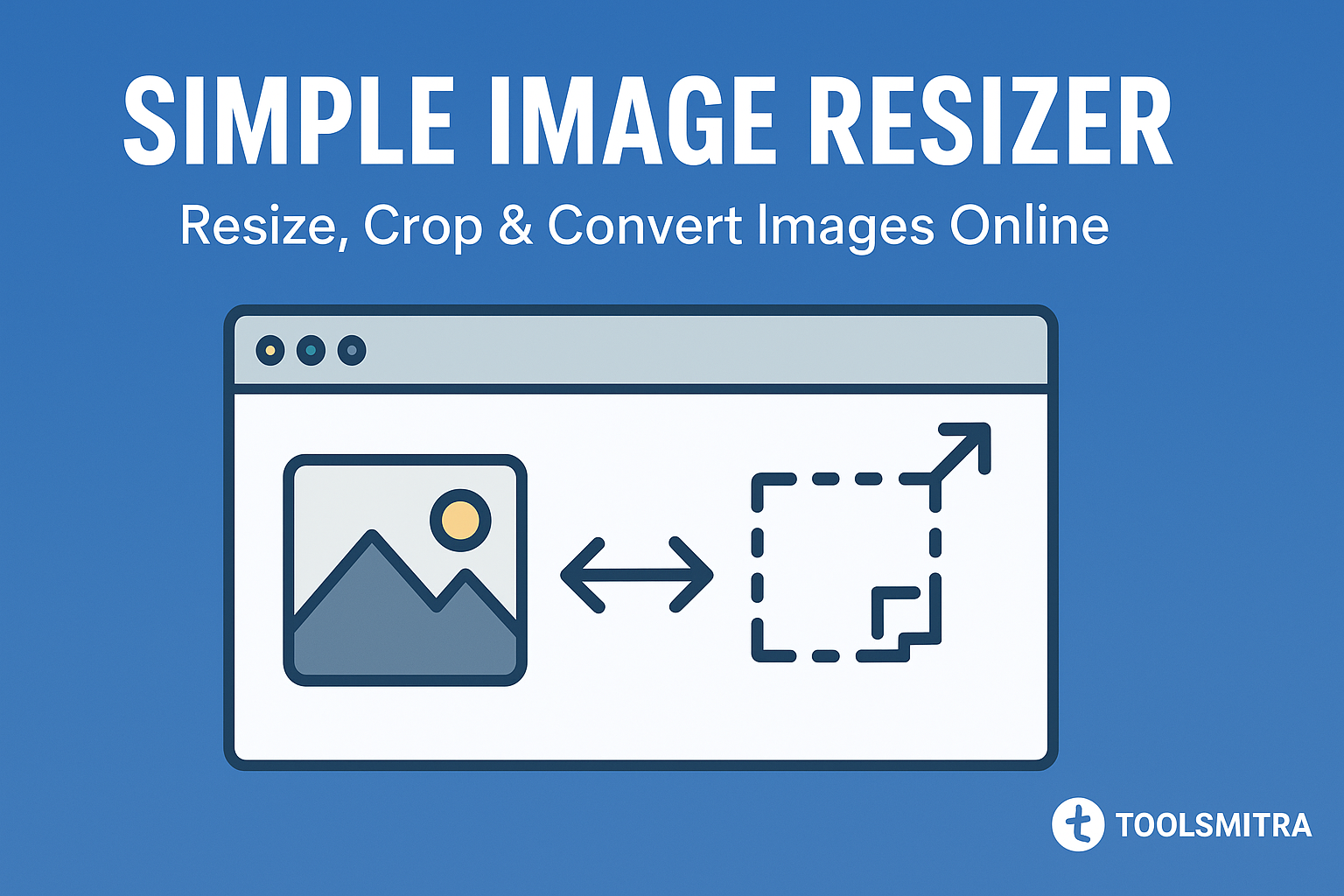

ToolsMitra’s Simple Image Resizer lets you resize, crop, and convert images instantly in your browser. No sign‑up, no watermark, and no file uploads — everything runs locally for privacy and speed. Perfect for bloggers, students, designers, and anyone who needs quick, clean image resizing.
Why use ToolsMitra’s Image Resizer?
Private by design: Processing happens on your device. Your images never leave your browser.
Fast & lightweight: No waiting for uploads/downloads. Works even on average connections.
Resize + Crop + Convert: Do basic edits in one place.
Free & watermark‑free: Clean outputs ready to use anywhere.
Works on mobile & desktop: Touch-friendly UI on phones/tablets.
Key Features
1) Resize images precisely
Set width and height in pixels.
Maintain proportions with an Aspect Ratio lock (avoid stretched images).
Scale down for web or to exact sizes for forms/portals.
2) Convert common formats
Export as JPG, PNG or Webp (and other common formats depending on your browser support).
Choose JPG for smaller web size; choose PNG for transparency or sharp graphics. (Webp for lowest file size)
3) Quick downloads
One‑click Download saves the processed file instantly.
Filenames preserve original name with a clear suffix so you don’t lose track.
4) Designed for the modern web
Crisp results suitable for posts, social media, portfolios, and e‑commerce listings.
Helpful defaults that keep quality reasonable and file sizes web‑friendly.
5) Quality Slider
When exporting images, the Quality Slider lets you balance between file size and clarity. A higher setting (80–100%) preserves maximum detail, ideal for photography and design work. Lower settings (50–70%) reduce file size significantly, making images web-friendly and faster to load while still looking sharp for everyday use.
6) Modes: Stretch, Contain, Crop
The Image Resizer offers flexible resize modes depending on your needs. Stretch forces the image to fit the exact width and height, even if it distorts proportions. Contain ensures the entire image fits inside the chosen dimensions, adding blank space if necessary. Crop fills the target area while trimming any overflow, making it perfect for fixed-ratio formats like 16:9 banners or 1:1 profile pictures.
Note: Exact controls may evolve as we keep improving the tool. This guide covers the typical flow and common options.
Need to compress your resized images? Try our Image Compressor.
How It Works
The tool uses your browser’s native image APIs (no server processing) to open, transform, and render your image. The transformed image is generated in memory, then offered as a download — meaning your data stays with you.
Step‑by‑Step Tutorial
A) Resize an image
1. Open the tool: Open Now
2. Add your image: Click Upload / Choose Image (or drag & drop your file into the page).
3. Set size: Enter new Width and/or Height (in pixels). Keep Aspect Ratio enabled to prevent distortion.
4. Preview: Check the on Generate preview to ensure the composition looks right.
5. Download: Click Download (or Save) to get the resized file.
Pro tips
If you only change Width, Height auto‑adjusts (and vice‑versa) when the aspect lock is on.
For website images, aim for widths like 1200px (article feature), 800–1000px (content images), 400–600px (thumbnails), depending on layout.
Avoid upscaling small images too much; it can look soft.
B) Convert JPG ↔ PNG (and more)
1. Add your image.
2. Look for Output Format.
3. Pick Wepb(Smallest), JPG (smaller files) or PNG (supports transparency).
4. Download.
Choosing formats
PNG: Logos, UI, product shots with transparency, crisp text.
JPG: Photos, blog images, social media — smaller size.
Webp: Use in Websites for faster loading – Recommended by Google
Common Use Cases
Blogging: Prepare featured images, in‑content graphics, and thumbnails.
E‑commerce: Standardize product images for consistent listing grids.
Assignments & forms: Resize photos/signatures to portal‑friendly sizes.
Social: Quick resizes for profile/cover images or stories.
Design handoff: Export variants for devs/clients without opening heavy apps.
Best Practices for Quality & Speed
Downscale rather than upscale. Upscaling can blur details.
Keep a master copy of your originals.
For the web, target images under 200–400 KB where possible (PNG may be larger).
Use descriptive file names (e.g., red-running-shoes-1200×800.jpg).
Use Quality Slider to Maintain Quality & File Size.
Troubleshooting
Image won’t load? Ensure the file is a common format like JPG/PNG/Webp and not corrupted.
Orientation issues? If a photo appears rotated, re‑export after rotating in your gallery app, then resize.
Huge downloads? Prefer JPG or Webp and consider slightly smaller dimensions.
Looks stretched? Turn on Aspect Ratio lock before changing size.
Transparency lost? Use PNG export for graphics with transparent backgrounds.
Frequently Asked Questions (FAQ)
Q: Is my image uploaded anywhere?
A: No. All processing happens directly in your browser. Your image never leaves your device, so your privacy is fully protected.
Q: What image formats are supported?
A: You can upload and download images in JPG, JPEG, PNG, and WebP formats.
Q: Can I resize without losing quality?
A: Yes. Use PNG for lossless resizing. For JPG and WebP, you can adjust the quality slider to balance between file size and image clarity.
Q: What do the resize modes (Stretch, Contain, Crop) mean?
A:Stretch: Forces the image into the set width and height, even if proportions change.Contain: Fits the image inside the given dimensions while keeping the aspect ratio.Crop: Cuts the image to exactly match the target size.
Q: Does it work on mobile devices?
A: Yes. The tool is fully responsive and works smoothly on Android, iOS, tablets, and desktops.
Q: Do I need to install anything?
A: No. The tool runs completely in your browser—no downloads, sign-ups, or installations required.
Q: Can I convert images while resizing?
A: Yes. You can resize and change the output format at the same time (e.g., JPG → PNG, PNG → WebP).
Q: Is it free to use?
A: Absolutely! The Simple Image Resizer by ToolsMitra is 100% free with no hidden charges.